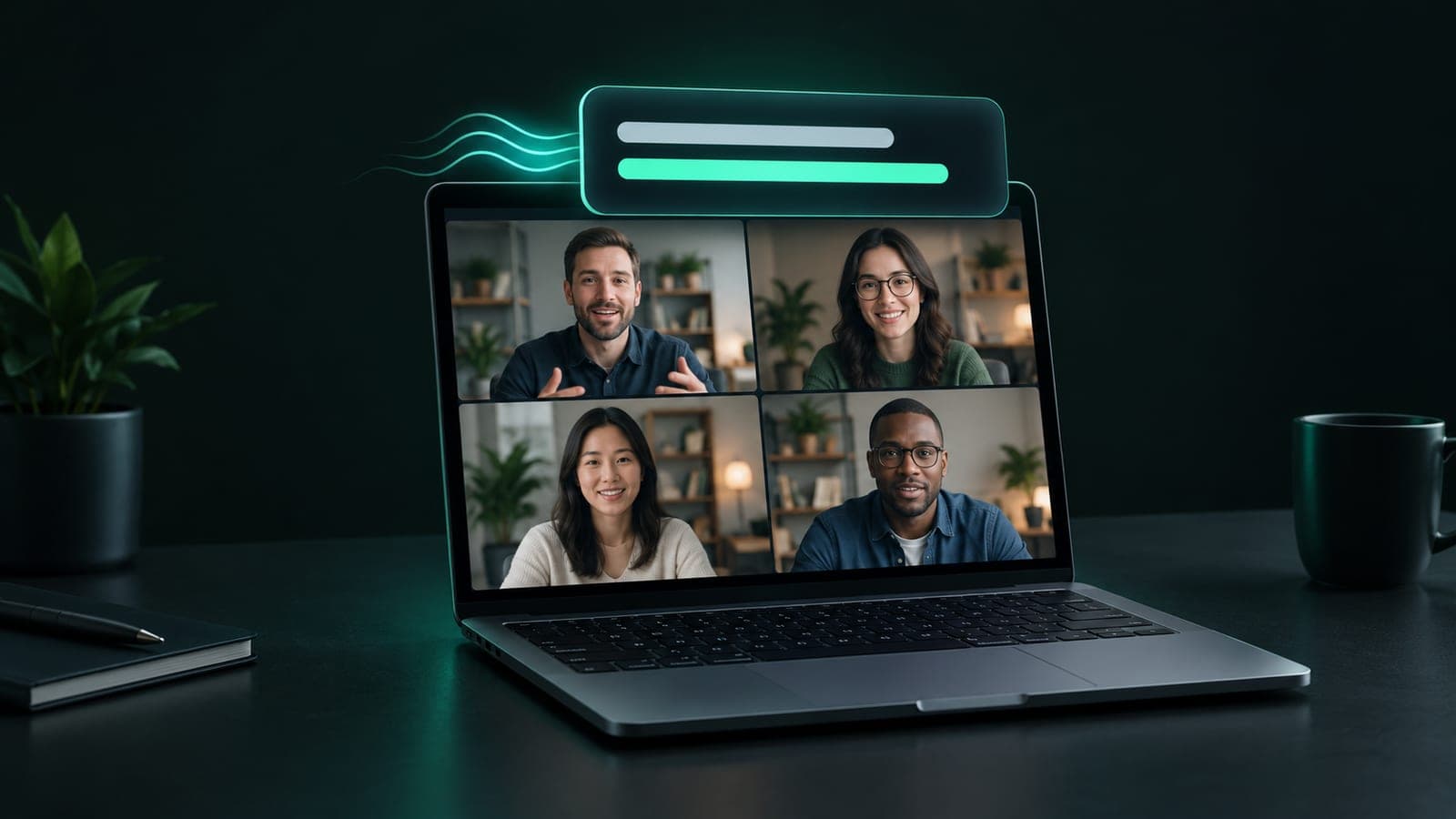
Google Meet, Zoom and Teams can all show live captions. Getting them translated into the language you actually read is another matter: it depends on the platform, on your plan, and sometimes on whether your IT admin switched the feature on. If you just need to follow a call in a language you don't speak well, there are three practical ways to get real-time translated subtitles, and they behave very differently.
The short answer
If your whole company is on one platform and already pays for translated captions, use those. They're included in the price.
If what you really want is a recording and minutes after the meeting, a note-taker bot does that job. Expect it to appear in the participant list.
If you need to understand people while they're talking, on whatever platform the other side picked, use a browser extension that translates the tab's audio. That's how SubLive works.
Three ways to get translated subtitles in a call
Captions built into Meet, Zoom or Teams
All three have live captions, and on some paid plans they translate them too. There's nothing to install, and recognition is tuned to the platform's own audio. When this option exists and covers your languages, start there.
The limits show up as soon as you leave that platform. A client's webinar on another service, a conference stream or a recorded training gets nothing. If the feature is tied to a licence tier, it may not be enabled on your account at all.
A note-taker bot
Meeting assistants join as an extra participant, record the call and send a transcript and summary afterwards. Some show a live transcript as well.
They're built for the archive. During the call they help less, and everyone can see the bot's name in the participant list. On a job interview or a first call with a client, think about that before you invite one. There's more on this in how SubLive compares to other tools.
A browser extension that reads the tab
This one doesn't connect to the meeting. A Chrome extension takes the sound the tab is already playing, sends it for recognition and translation, and shows the text in a small window over the call.
It works wherever there's sound in a Chrome tab: Google Meet, Zoom in the browser, Teams on the web, Whereby, Jitsi, and also webinars, live streams and videos. Nobody joins the call, and the other participants' screens don't change.
| Built-in captions | Note-taker bot | Extension in the tab | |
|---|---|---|---|
| Works on | one platform | supported platforms | anything playing in a Chrome tab |
| Visible to others | no | yes, as a participant | no |
| Depends on licence or admin | often | no | no |
| When it helps | during the call | after the call | during the call |
| Desktop apps | yes | yes | no, browser tabs only |
Note the last row. The installed Zoom or Teams app isn't a browser tab, so an extension can't hear it. Join the same meeting from the browser instead (step 2 below).
How to set up live translated subtitles in Google Meet, Zoom or Teams
With SubLive it takes a couple of minutes, most of them spent signing in.
- Install the extension. Add SubLive from the Chrome Web Store, pin it to the toolbar and sign in. Confirm your email and you get 30 free minutes, no card needed.
- Open the call in Chrome. Meet already runs there. In Zoom, click "Join from your browser" on the meeting page. In Teams, pick the web version instead of the app.
- Choose the language you read. Ten common spoken languages are detected automatically, even when a call switches between two of them. For any other language, set it once in the extension.
- Start the subtitles. They open in a window you can move and resize. Pin it above all windows and it stays visible while you type notes somewhere else.
Getting better subtitles
Recognition can't be better than the audio it hears. A few things help:
- Set the spoken language by hand when there's music or background noise. Auto-detection is reliable on clean speech and less sure of itself in a noisy room.
- Put product names, client names and internal jargon into a glossary. Generic translation guesses at these and often guesses wrong. A product called "Runway" turns into an airstrip.
- On calls with several people, switch to dialog mode. Each speaker gets a name and a colour, and the original sentence stays under the translation, which makes interruptions much easier to follow.
- Treat the output as help, not as a record. For a contract, a diagnosis or a hiring decision, check what was actually said.
You can also listen instead of reading. The translation is read aloud while the original gets quieter. Your browser's built-in voice costs nothing extra; the more natural AI voice uses your balance faster.
What happens to the audio
No recording is created. Speech is processed in memory and isn't written anywhere. A text transcript exists only if you turn it on, and it expires on its own.
Your microphone is off by default. SubLive reads what the tab plays, which means the other participants. Your own voice is used only if you choose to save a transcript, and Chrome asks you for the microphone first. One more case: if you listen to the translation as dubbing and turn on pausing it while you speak, the extension only measures how loud you are, on your computer. Nothing from that is recorded or sent.
Consent is still your responsibility. Some countries and US states require everyone on a call to agree before it's processed, and an extension can't ask them for you. The Recording & Consent notice explains when that applies.
Keeping what was said
Transcripts are off by default, so switch them on before the call starts. Afterwards you can get an AI summary of the conversation, emailed to you when the call ends. If your team works across languages every day, there's a page about SubLive for companies.
Frequently asked questions
How much does it cost?
Your first 30 minutes are free once you confirm your email. After that you pay only for the time subtitles are switched on: buy a pack of hours once, or take a monthly plan with a lower price per hour. There are no seats.
Which languages does it support?
Subtitles in 60 languages. Ten spoken languages are detected automatically; for the rest you name the spoken language once.
Can I use it on my phone?
No. SubLive is a Chrome extension, and mobile Chrome doesn't run extensions. You need Chrome on a computer.
Can I rely on it as an official translation?
No. It's machine transcription and translation, not a certified or legally binding translation. It's good for following a conversation, but anything with consequences should be checked against what was actually said.