Speech in a tab, subtitles in your language — while people are still talking
SubLive turns speech playing in a Chrome tab into live subtitles, translated as people speak, in a window you can float above everything else on your screen. You pick the language you read. That is the whole setup.
Video calls in the browser — Google Meet, Zoom Web, Microsoft Teams on the web
Lectures, online courses, webinars and conference streams
Live streams and broadcasts — Twitch, YouTube Live, news, sport
Videos, podcasts, radio and audiobooks in web players
Three steps to start
Pin it and sign in
Add SubLive from the Chrome Web Store, pin it to your toolbar and sign in. Confirm your email and your first 30 minutes are on us — no card.
Pick the language you read
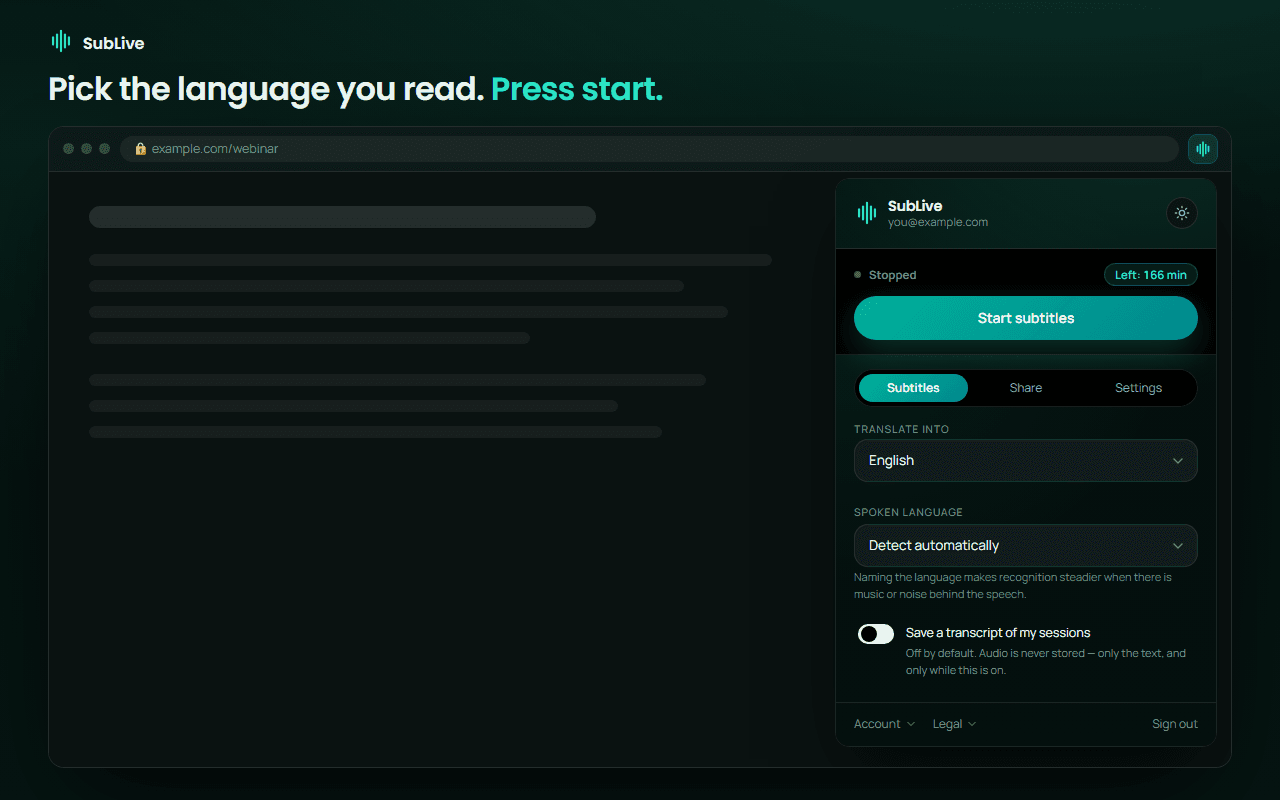
Open the tab you want subtitles for and choose your language. For 10 common spoken languages the spoken language is detected on its own; any other you name once. Naming it also steadies recognition when there is music or noise behind the speech.
Press start
Subtitles appear in a window you can move, resize and restyle — or send above every other window, so you can take notes while you read.
What each screen looks like
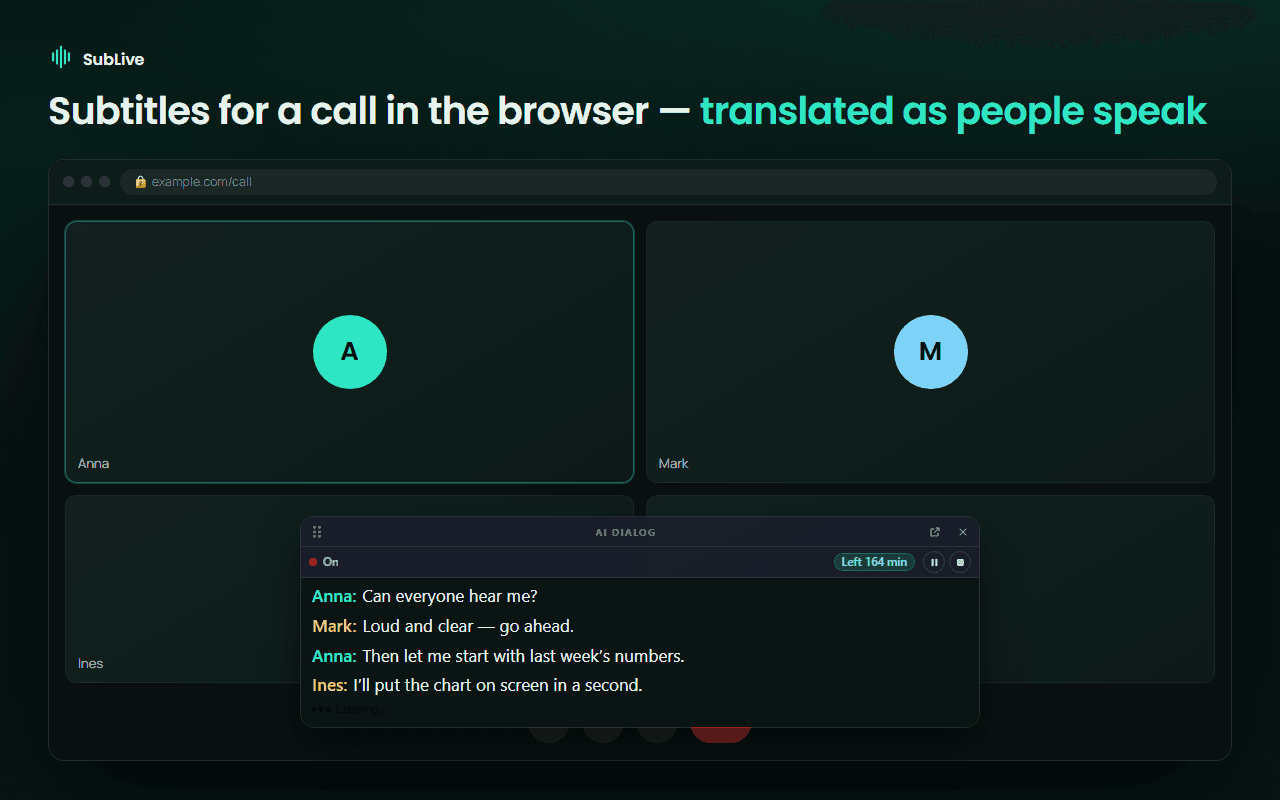
A call in Google Meet, Zoom Web or Microsoft Teams in the browser. No bot joins and nothing shows in the participant list — SubLive works inside your own tab. Your microphone stays off unless you save a transcript (your own replies are then added to it) or turn on “Stop dubbing while I speak” (only loudness is measured, on your computer). Your own voice is never translated or shown as subtitles.
Pin SubLive, sign in, and pick the language you read. Automatic covers 10 spoken languages; for any other, or when there is music or noise behind the speech, name the spoken language.
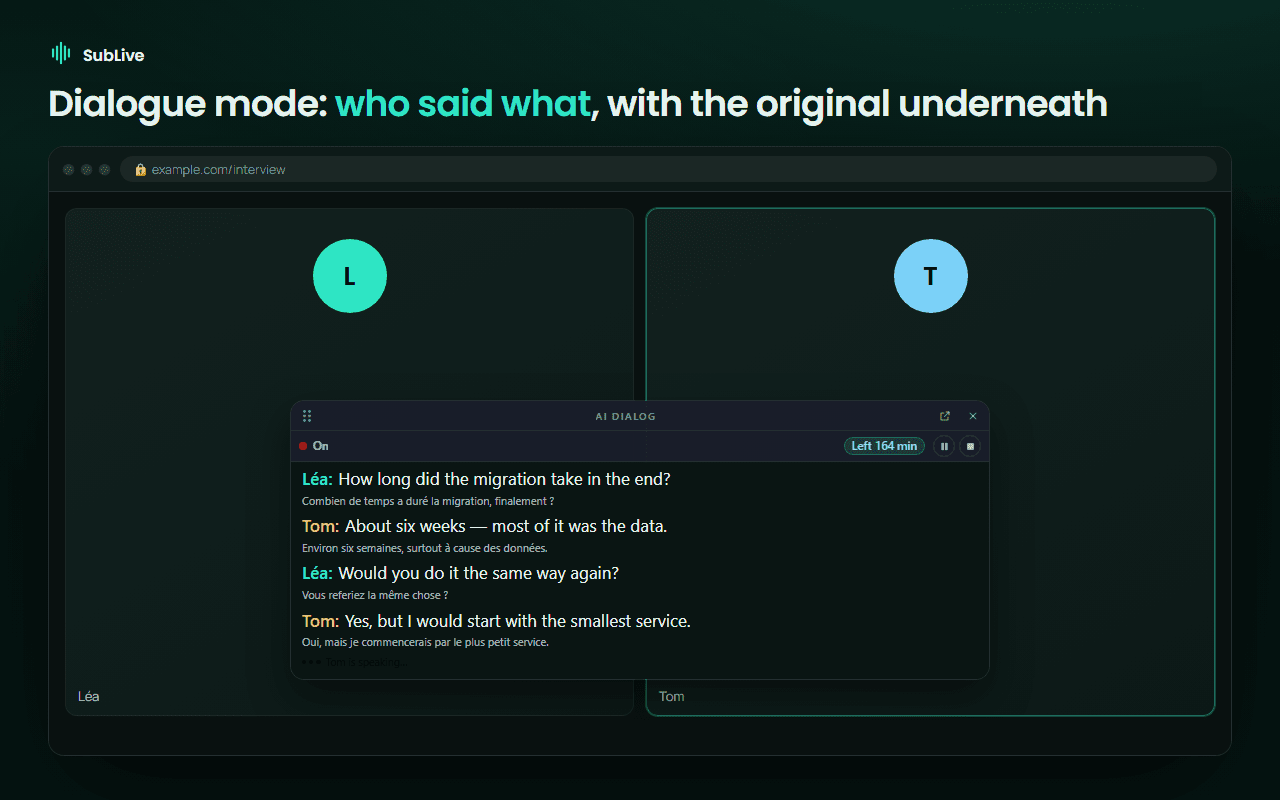
Dialogue mode names and colours every speaker and keeps the original line underneath — this is how people follow an interview, or use it to learn the language.
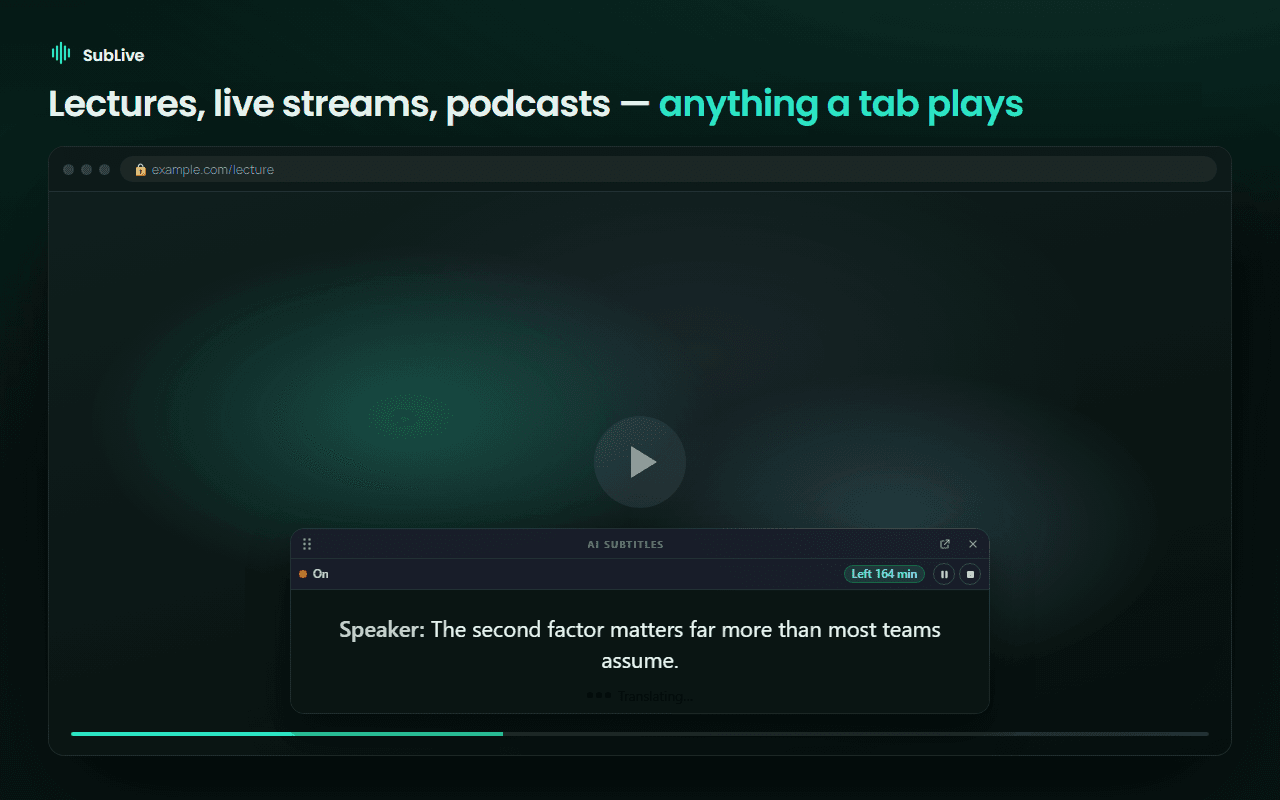
Lectures, webinars, live streams, podcasts, radio — anything a tab plays. One running caption line under the video, always in view.
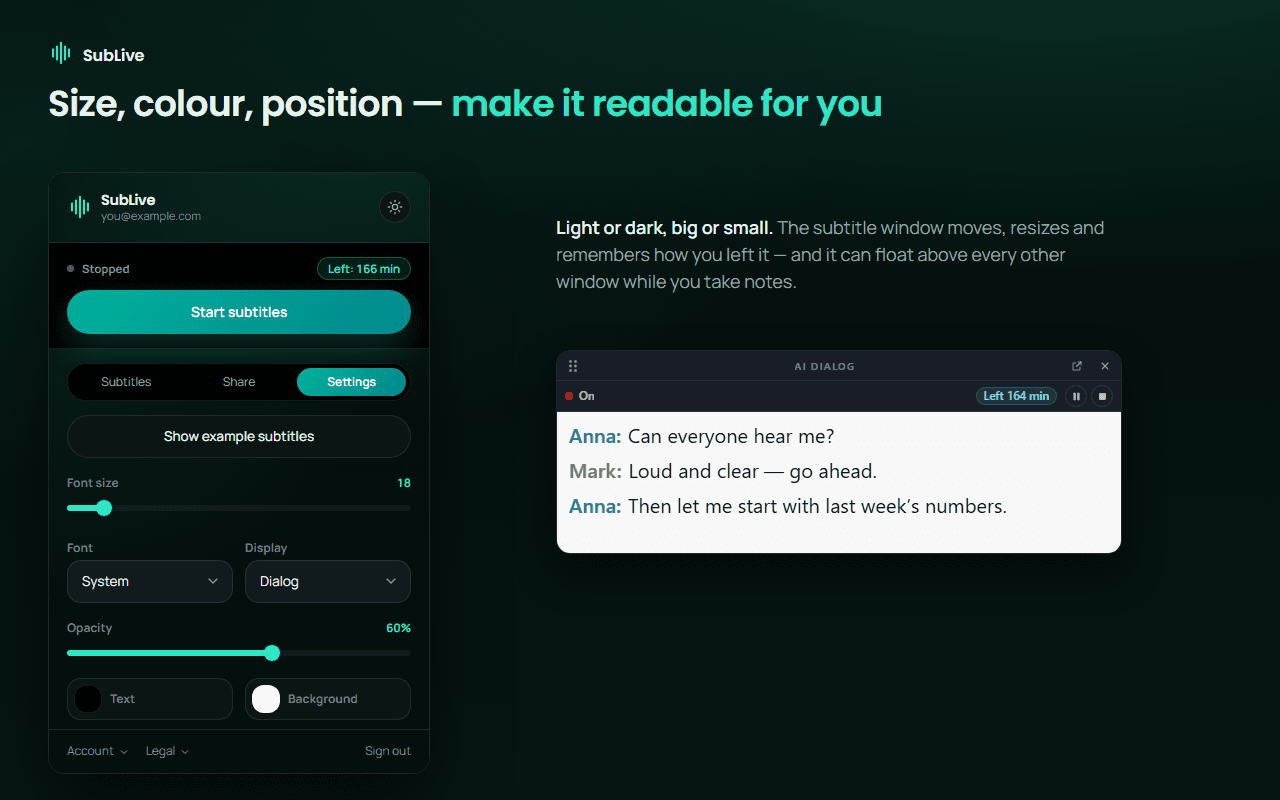
The subtitle window moves, resizes and remembers how you left it. Change font, size, colour and opacity, or send it above every other window while you take notes.
Why people pick it
No bot joins your meeting
Nothing appears in the participant list, because SubLive works inside your own browser, not as a guest in the call.
Your microphone, only when you choose
The extension reads what the tab plays. Your microphone stays off unless you save a transcript (your own replies are then added to it) or turn on “Stop dubbing while I speak” (only loudness is measured, on your computer). Your own voice is never translated or shown as subtitles.
Audio is never stored
Speech is processed in memory and written nowhere. A text transcript is kept only if you switch that on, and it expires by itself.
Read it, or hear it
Subtitles by default. If you prefer, the translation is read aloud and the original quietens under it — your browser's own voice for free, or a natural AI voice.
Subtitles or dialogue
One running caption line under the video, or a scrolling transcript with every speaker named and coloured.
Your own words
Put product names and internal terms in a glossary and they come out the way your team says them, not the way a generic model guesses.
Keep what mattered
Save a conversation, get an AI summary of it, have it emailed when the call ends — each of those off until you turn it on.
No delay on subtitled videos
If a video already has subtitles, SubLive translates them ahead and shows each line on time. Without them it listens to the audio and stays about a sentence behind.
What it will not do
Better you know now than after installing.
It does not hear the desktop Zoom, Teams or Slack applications — only Chrome tabs. Join the meeting in the browser instead.
It does not work on services that protect their audio, such as paid film and TV platforms. SubLive does not attempt to get around content protection.
It is not a certified or legally binding translation. Machine transcription and translation make mistakes — check anything with consequences.
It does not obtain consent for you. Where the law requires the other participants to agree before a conversation is processed, that is your responsibility.
It is not instant on live speech. Calls, streams and videos without subtitles are translated about a sentence behind the speaker — a phrase has to be heard before it can be translated. Only videos with their own subtitles are translated with no delay.
Before your first call
Processing someone else's speech is regulated, and the rules differ by country and US state. The Recording & Consent notice explains, in plain language, when you need to ask the other participants first.