Original and translation
Each line is stored as it was said and as it was translated. When a word in the translation looks odd, the original is right there to check it against.
Turn on transcript saving before you press Start, and SubLive keeps every line it recognised and translated, with the speaker in front of it. Your own replies go in as well, from the microphone. When the call ends, the transcript waits in the extension until you download it.
15 Minuten gratis, sobald du deine E-Mail bestätigt hast. Keine Karte nötig.
Speaker 1: We can hold this price until the end of September.
Original Wir können diesen Preis bis Ende September halten.
You: Good. And if we double the order?
Speaker 2: Then we deliver every two weeks instead of monthly.
Original Dann liefern wir alle zwei Wochen statt monatlich.
Speaker 1: Mr Behrendt sends the new contract on Friday.low confidence
Original Den neuen Vertrag schickt Herr Behrendt am Freitag.
Each line is stored as it was said and as it was translated. When a word in the translation looks odd, the original is right there to check it against.
With saving on, the extension asks for your microphone and adds your replies to the record. Your voice is never translated or shown as subtitles, and you can mute it from the subtitle window.
Audio is never stored. Text is kept only when you switched saving on before the conversation, so there is no hidden archive to think about later.
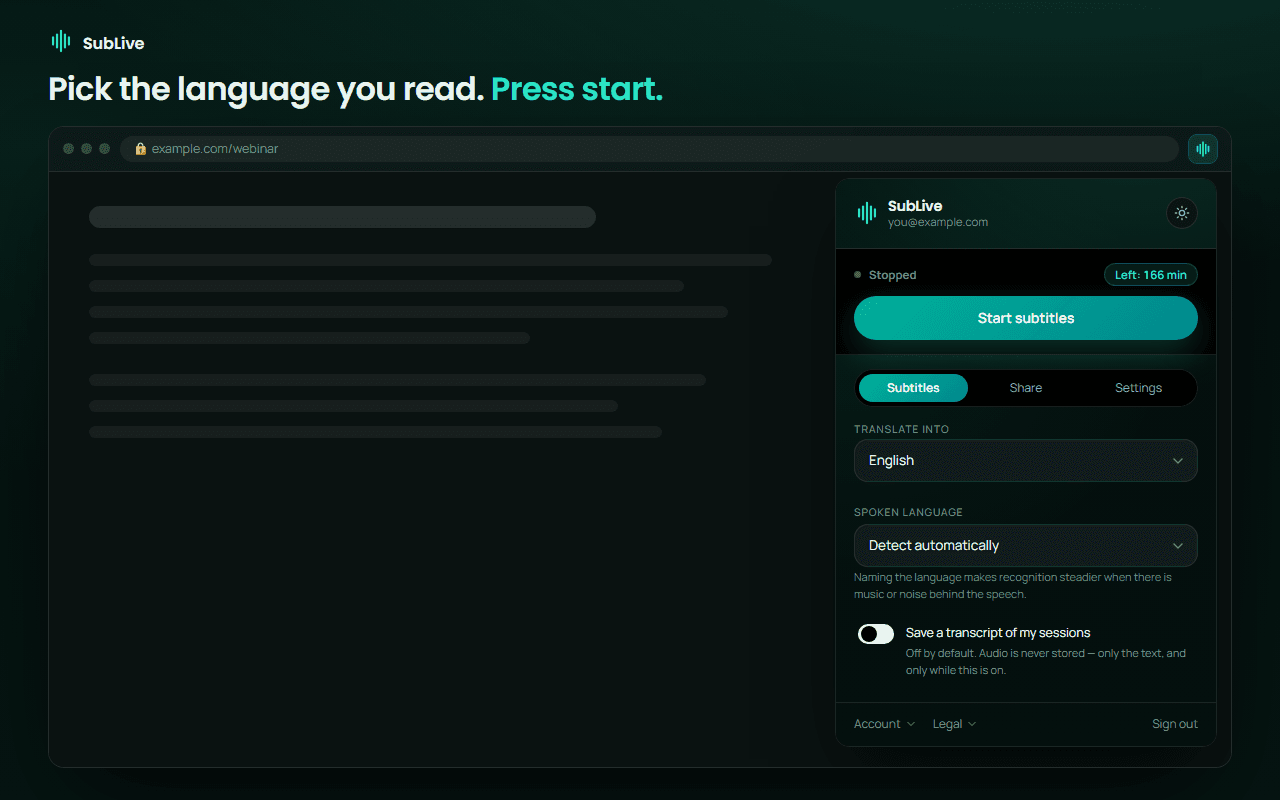
Before you start, turn on transcript saving in the extension. Chrome asks once for the microphone, so your replies become part of the record.
Google Meet, Zoom or Teams in the browser, a webinar, a lecture: every finished line goes into the transcript while you read the subtitles.
Press Stop and the conversation appears under Recordings in the extension. Download it, or delete it right there.
Transcript saving is a switch on the first tab of the extension, under the languages. It stays as you left it for the next calls.
There are three formats, depending on what comes next. Plain text for notes and for pasting into an email. SRT if you want the lines with their timestamps, for example to lay them under a recording of the same lecture. RTF if the transcript is going into Word or LibreOffice.
The file carries the translation. Once more than one voice was heard, every line starts with its speaker; in a monologue nobody is labelled. Speakers are numbered, so you may want to replace Speaker 1 and Speaker 2 with real names before you send the file on.
On a personal account the server deletes a saved transcript 24 hours after the conversation. That is enough time to download it, and short enough that what other people said on your call does not sit on a server for months.
A company account works differently. Transcripts live in the company admin panel for as long as the company chose, up to 30 days, and the administrator decides who may open them. A company that has not signed the data processing agreement keeps none at all.
Personal account
Start
Saving was switched on before the call.
Stop
The conversation appears under Recordings in the extension.
Download
TXT, SRT or RTF, straight from the extension.
24 hours later
The server deletes it. The file you downloaded stays with you.
Company account
Start
The company policy lets employees save conversations.
Stop
The call goes to the company archive.
Search and summary
People with access open it, search it and ask for a summary.
End of the period
Deleted when the company's retention period runs out, 30 days at most.
A saved conversation can get an AI summary: what it was about, what was decided, what is still open. It is charged once from your balance, and reading it again later costs nothing. Turn on the recap email too, and the summary arrives with a link to the full text as soon as the call ends.
On a company account every saved call can be searched by the words said in it. A call that several colleagues recorded at the same time becomes one conversation with one transcript.
SubLive does not join the call, so nothing new appears in the participant list. Whether you need the other people's consent is a separate question. Recording another person's speech is regulated, and several US states require the consent of everyone on the call.
The recording and consent page explains what applies where. Read it before you save a call with people outside your company.