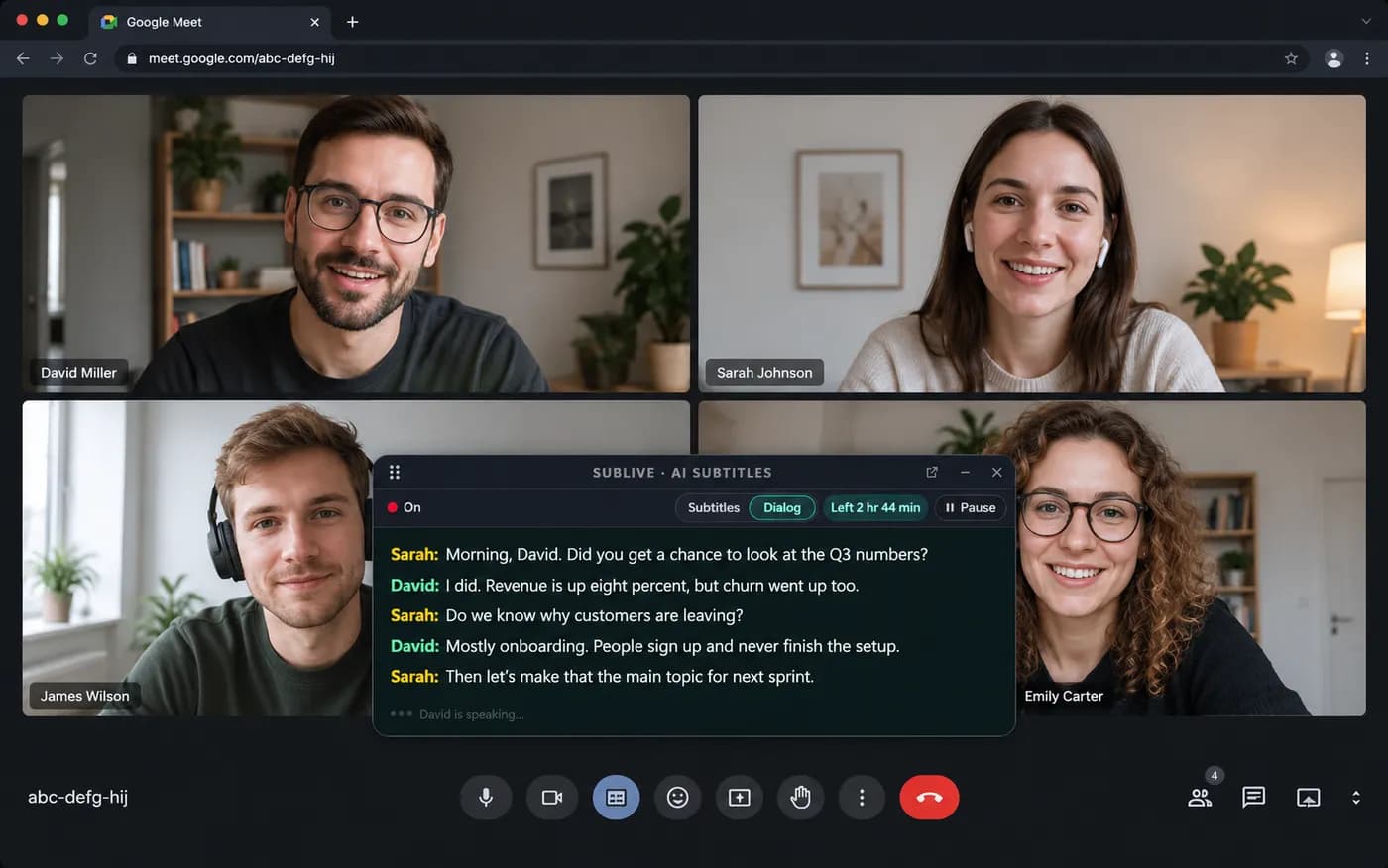
Google Meet already runs in the browser, which makes it the simplest call to translate. Open the meeting in Chrome, start SubLive on that tab and read what everyone says in your language, in a window above the call. Whose Google account the meeting belongs to, and who organised it, makes no difference.
Free minutes after you confirm your email. No card required.
Illustration: SubLive in dialog mode over a Google Meet call in Chrome.
What makes this case different
Any Meet account
Meet’s own translated captions are limited to certain Google Workspace editions. SubLive does not look at the plan: a personal Gmail account, a client’s Workspace and a meeting link from someone you have never met all work the same way.
Names on the lines
In dialog mode every voice gets its own label. On Meet, SubLive also matches each voice with the participant tile that lights up while it speaks and puts that person’s name on the line. Names stay on your screen and are not added to a saved transcript.
Your side of the call
SubLive translates what you hear. Your own voice is not translated for the others, so if the client needs your words in their language, a shared language or Meet’s own speech translation still has to cover that direction.
How it works here
Open the meeting in a Chrome tab
Use the link from the invite or go to meet.google.com. Google lists Chrome among the browsers Meet supports, so there is nothing else to install.
Pick your language, then dialog mode
Choose the language you read. With more than two people on the call, switch on dialog mode so each line shows who said it.
Press start or Alt+Shift+S
Subtitles appear in a window on the page. Put it above all windows if you switch to another app during the call.
Example: a sales call with a client abroad
Say a client in Spain runs the weekly call from their company’s Google Workspace, in Spanish. You follow Spanish slowly, and their Meet settings are not yours to change.
You open the link in Chrome, choose English and start SubLive in dialog mode. After a few exchanges the lines carry names, so when the questions about price and about delivery dates come from two different people, you know whom to answer. If transcript saving is on, the discussion is there as text after the call. If it is off, nothing is kept.
What it will not do
SubLive hears the Meet tab in Chrome. If you join from the Meet app on your phone, there is nothing for it to hear.
Names come from the participant tiles. When several people sit in one meeting room behind one camera, they share a tile, and their lines keep voice numbers.
Subtitles from speech arrive about a sentence after the speaker. For figures that matter, such as a price or a deadline, confirm them in writing.
Questions people ask about this
Do I need a Google Workspace plan to translate Meet?
Not for SubLive. Google lists translated captions in Meet only for certain Workspace editions, such as Business Standard and above, so with a personal account or Business Starter the option is missing. SubLive works on the sound of the tab, whatever the plan.
Do I have to be the organiser?
No. You only need to be in the call. The organiser does not install anything or change a setting.
How does it know who is speaking?
It compares the voice it hears with the tile Meet highlights at that moment. A name is attached only after the two have matched several times; until then, or when it is unsure, the line says Speaker 1, Speaker 2.
Is my own voice translated?
No. SubLive translates the call audio that reaches your tab, which is everyone except you. For the others to read you in their language, they need subtitles of their own.