Zoom translator for meetings you join in the browser
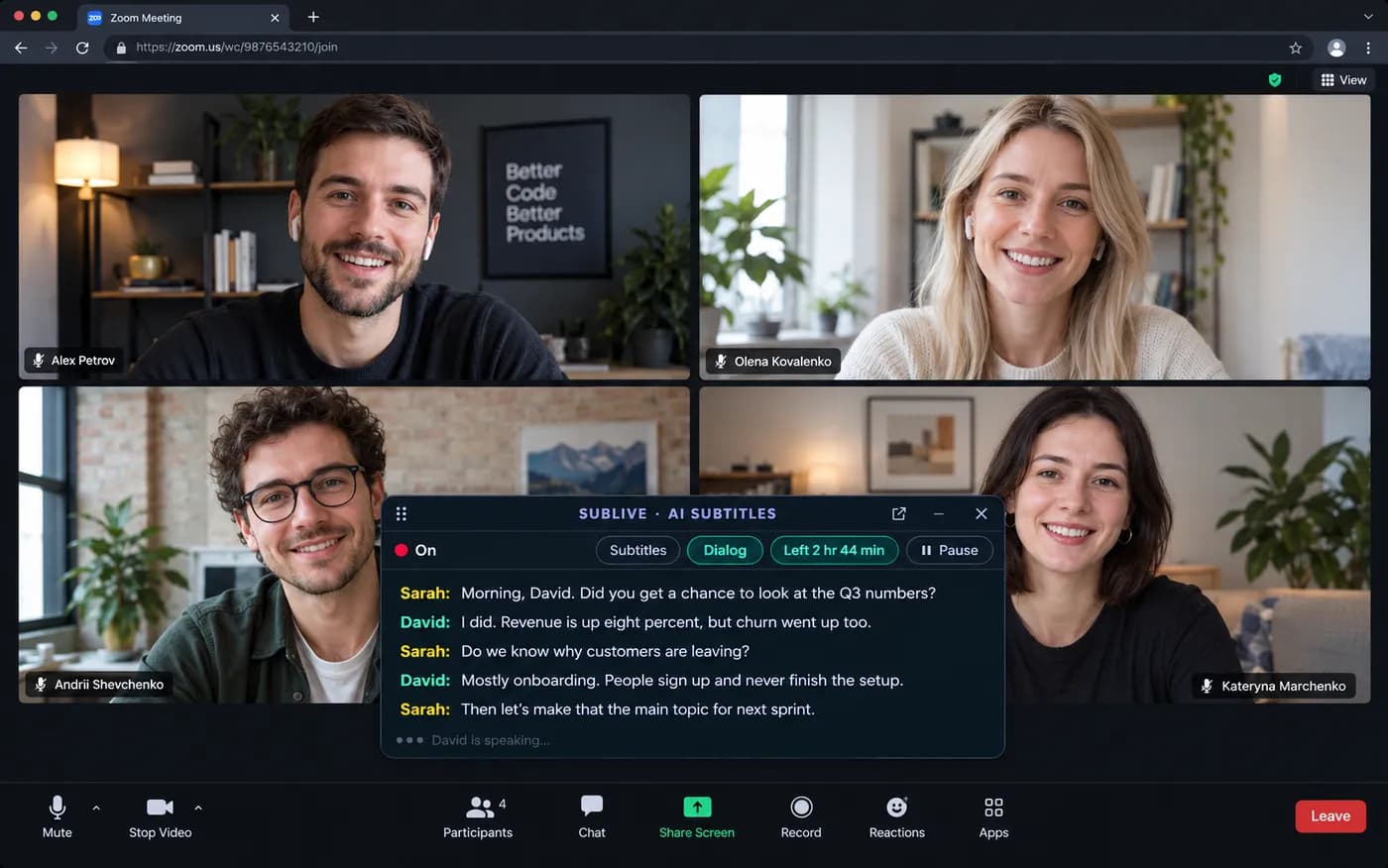
Zoom steers you towards its desktop app, and SubLive cannot hear that app. The way around it is to join the same meeting in Chrome. Once Zoom runs in a tab, SubLive turns what people say into subtitles in your language, and nobody else in the meeting has to do anything.
Free minutes after you confirm your email. No card required.
Illustration: SubLive over a Zoom meeting in the web client.
What makes this case different
The browser route is Zoom’s own
Zoom documents two ways into a meeting without the app: the Join from your browser link on the invite page, and the Zoom Web App, where you enter the meeting ID and passcode. Either one puts the meeting in a Chrome tab.
No Zoom plan or add-on
Zoom’s own translated captions need a Business Plus or Enterprise plan, or a paid add-on, and the feature switched on in the account settings. SubLive does not depend on any of that, on your account or the host’s.
Names from the video tiles
In dialog mode, SubLive reads the name on the tile Zoom highlights while someone speaks, so a line says who spoke instead of Speaker 2. The names stay on your screen.
How it works here
Join the meeting in Chrome
Open the invite link and cancel the prompt to open the app. At the bottom of the page, choose Join from your browser. If that link is missing, open the Zoom Web App and enter the meeting ID and passcode.
Let Zoom in, then pick your language
The browser asks whether Zoom may use your microphone and camera, as the app would. In SubLive, choose the language you read.
Start subtitles on the Zoom tab
Press start or Alt+Shift+S. The subtitles window sits over the meeting, and you can lift it above every other window too.
Example: a partner’s product briefing
A partner company in Germany holds a product briefing on Zoom, in German, and sends you the link. Their account is theirs, and asking them to switch on translated captions for one guest is not realistic.
You open the link in Chrome, take the browser option and start SubLive with English. The slides stay in the Zoom tab, the translation runs in its own window, and you drag that window to wherever it does not cover the slide.
What it will not do
The Zoom desktop app is not heard. Zoom’s help says that the first time you join from Chrome through join.zoom.us, you are asked to open the desktop app; decline it, or SubLive will have nothing to listen to.
Zoom describes its Web App as having limited features and recommends the desktop app for the best audio and video. Before an important meeting, check that what you need from Zoom is there in the browser.
Subtitles come from the sound, so they trail the speaker by about a sentence, and your own voice is not translated for the others.
Before you use it at work
Some companies restrict which Chrome extensions their staff can install, and on a managed browser an administrator can block them. If your laptop is managed, check your company’s policy on third-party extensions before you rely on SubLive in Zoom.
If you save a transcript of the meeting, ask the other participants whether they agree. Whether their consent is legally required depends on where you and they are; the Recording & Consent notice explains what SubLive does and what it leaves to you.
Questions people ask about this
What if there is no Join from your browser link?
Zoom shows that link only when the meeting host has enabled it. Without it, open the Zoom Web App in Chrome, choose Join a meeting and enter the meeting ID and passcode from the invite.
Does it work if Zoom’s own captions are on?
Yes. Zoom’s captions are text on the page; SubLive listens to the sound of the tab and does not read them. You can keep both, Zoom’s captions in the original language and SubLive’s subtitles in yours.
Do I need a Zoom account?
Zoom’s help describes joining from the browser link with only a display name, and joining in the Web App with the meeting ID and passcode without signing in. SubLive needs its own account, the one you sign in to in the extension.
Does Zoom have translated captions of its own?
Yes, on Business Plus and Enterprise plans or with an add-on, and the languages on offer depend on the language pairs enabled in the account. Zoom itself warns that translated captions may not be accurate. SubLive is machine translation too, and the same caution applies.