No licence on either side
Translated captions in Teams need a Teams Premium or Copilot licence, either yours or the organiser’s. SubLive works on the meeting’s sound in the browser, so neither of you needs one.
Translation inside Microsoft Teams comes with licences: Teams Premium or Copilot for translated captions, Copilot for Interpreter. When nobody in the meeting has them, open it in Teams on the web, in Chrome, and SubLive shows what people say in your language in a window above the meeting.
Free minutes after you confirm your email. No card required.
Translated captions in Teams need a Teams Premium or Copilot licence, either yours or the organiser’s. SubLive works on the meeting’s sound in the browser, so neither of you needs one.
Microsoft does not support Interpreter in town halls, webinars or Microsoft Teams free, and guests cannot use it. For SubLive the question is only whether the meeting plays in a Chrome tab.
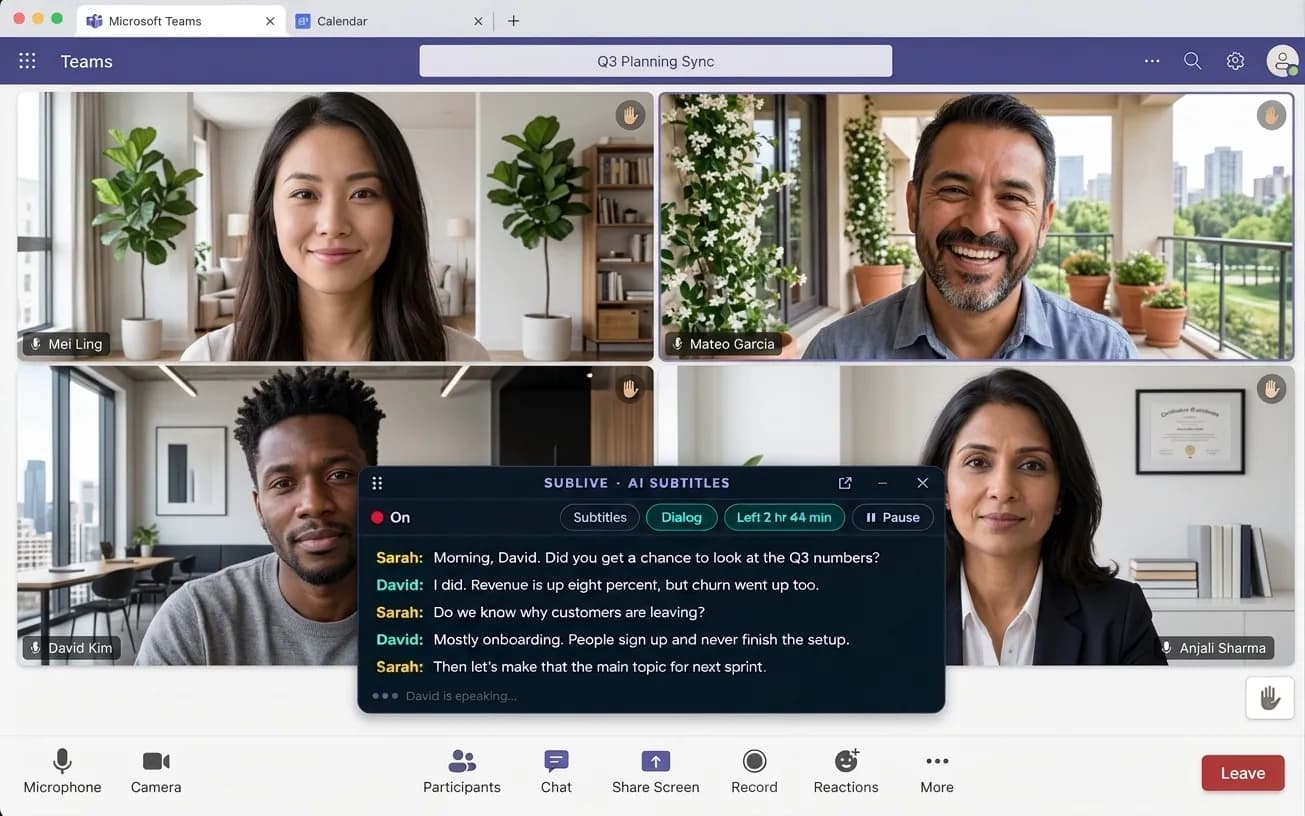
Teams outlines the tile of whoever is speaking. In dialog mode, SubLive uses that to put the person’s name next to their words, on work accounts and on teams.live.com alike. The names are not saved anywhere.
From the invite, choose Continue on this browser instead of the Teams app; Microsoft lists Edge and Chrome for joining this way. With a work account you can also sign in at teams.microsoft.com, and personal accounts use teams.live.com.
Common spoken languages are detected on their own. If the meeting is in a less common one, name it once before you start.
Press start or Alt+Shift+S. Subtitles appear in a window you can keep over the Teams tab or above every window on the screen.
Your team holds its stand-up on Teams in English. You work from Kyiv, English is your second language, and the company has no Teams Premium.
You keep the meeting in a Chrome tab instead of the desktop app and start SubLive with Ukrainian. Each update comes up in Ukrainian next to the colleague’s name, so when someone mentions a blocker that touches your part of the work, you catch it the first time.
Some companies restrict which Chrome extensions their staff can install, and on a managed browser an administrator can block them. If your laptop is managed, check your company’s policy on third-party extensions before you rely on SubLive in Teams.
If you save a transcript of the meeting, ask the other participants whether they agree. Whether their consent is legally required depends on where you and they are; the Recording & Consent notice explains what SubLive does and what it leaves to you.
What Teams includes, what needs an add-on and how the options compare is covered in Microsoft Teams live translation: captions, Interpreter and a browser option.
How SubLive compares with meeting bots and built-in captions →
SubLive is not affiliated with Google, Microsoft or Zoom.